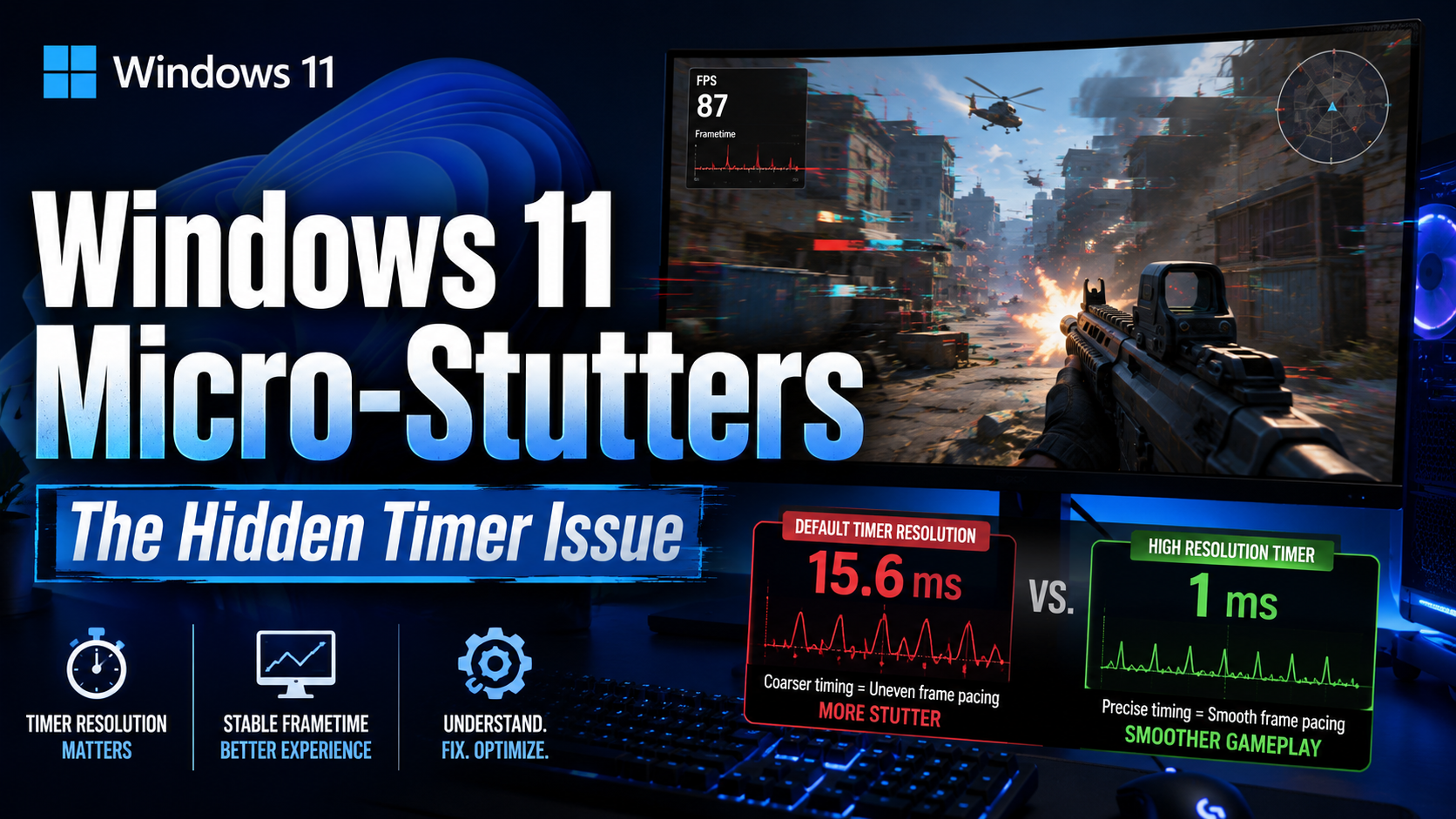
If you are on Windows 11 and your games feel less smooth than they should, even when your FPS looks fine, the problem may not be your GPU, CPU, or graphics settings.
It may be Windows itself.
Since Windows 11, timer resolution behavior has changed in a way that can affect frame pacing. A game may request a high-resolution timer, such as 1 ms, but Windows can still keep the system-wide platform timer at the older default value of around 15.6 ms.
The result is not always a visible FPS drop. Instead, it can feel like tiny, inconsistent micro-stutters: rough camera movement, uneven frame delivery, or a strange lack of smoothness during fast motion.
You may notice it most in:
- Intense gunfights
- Crowded multiplayer lobbies
- Fast flicks or quick camera movement
- Competitive shooters where frame pacing matters
This behavior appears to be tied to power-saving changes in Windows 11. That makes sense for laptops running on battery, but it can be frustrating for desktop users who want maximum consistency while gaming.
Who This Is For
This tweak is mainly useful for:
- Windows 11 desktop users
- Players with persistent micro-stutters that do not match CPU or GPU usage
- Competitive players in games like Warzone, Black Ops 7, CS2, Valorant, and similar titles
- Users who see inconsistent frame pacing despite stable FPS
Who Should Avoid This
Do not apply this blindly.
You should probably skip this if:
- You are on Windows 10
- You are using a laptop on battery power
- You care more about battery life than maximum frame consistency
- Your system already feels perfectly smooth
Changing timer behavior can increase power usage, especially on laptops.
Quick Check: Is Windows Ignoring Your Game’s Timer Request?
Before changing anything, check whether this issue applies to your system.
- Open your game.
- Minimize it.
- Open Command Prompt as Administrator.
- Run:
powercfg /energy
- Wait 60 seconds.
- Open the generated energy report.
- Search for:
Platform Timer Resolution
Look for signs that your game or another process requested a lower timer value, but Windows is still showing the current timer resolution as:
156250
That value is in 100 ns units and corresponds to roughly 15.6 ms.
If your game requested a lower timer resolution but Windows remains stuck at 156250, Windows may not be applying the request globally.
The Fix for Windows 11
This fix restores global timer resolution request behavior on Windows 11.
Fast Method: Command Prompt
Open Command Prompt as Administrator, then paste:
reg add "HKLM\SYSTEM\CurrentControlSet\Control\Session Manager\kernel" /v GlobalTimerResolutionRequests /t REG_DWORD /d 1 /f
Then restart your PC.
Alternative Method: Registry Editor
You can also apply the change manually.
- Press Win + R
- Type:
regedit
- Run Registry Editor as Administrator.
- Go to:
HKEY_LOCAL_MACHINE\SYSTEM\CurrentControlSet\Control\Session Manager\kernel
- Right-click in the right panel.
- Select New → DWORD (32-bit) Value.
- Name it exactly:
GlobalTimerResolutionRequests
- Set its value to:
1
- Use Hexadecimal.
- Restart your PC.
How to Confirm It Worked
After restarting:
- Launch your game again.
- Minimize it.
- Open Command Prompt as Administrator.
- Run:
powercfg /energy
- Open the report.
- Check Platform Timer Resolution again.
If the tweak worked, Windows should now respect the lower timer resolution request while your game is running.
What This Will and Will Not Do
This will not increase your FPS.
Do not expect higher average frame rates, better benchmark numbers, or more GPU performance.
What it can improve is frame pacing.
That means your game may feel smoother, more consistent, and more responsive, especially in moments where the FPS counter previously looked fine but the game still felt uneven.
In other words: this is not about more frames. It is about better timing between frames.
Sources
- RadiantOpti on X/Twitter — community post highlighting the Windows 11 timer resolution behavior and the
GlobalTimerResolutionRequestsregistry tweak:
https://x.com/RadiantOpti/status/2060480263117770904?s=20 - Microsoft documentation —
timeBeginPeriod, timer resolution behavior, and Windows 10/11 changes related to process visibility and timer requests. - Microsoft power diagnostics —
powercfg /energy, which can be used to check platform timer resolution requests and current timer behavior.
Final Thoughts
Windows 11’s timer behavior can be good for battery life, but it is not always ideal for gaming desktops.
If you are chasing persistent micro-stutters and your CPU and GPU usage look normal, this is worth checking. The tweak is simple, reversible, and easy to verify with powercfg /energy.
Try it, test your usual games, and compare before and after.
Did it make your gameplay feel smoother? Share your results below.

Founder of ToolsLib, Designer, Web and Cybersecurity Expert.
Passionate about software development and crafting elegant, user-friendly designs.
Stay Updated with ToolsLib! 🚀
Join our community to receive the latest cybersecurity tips, software updates, and exclusive insights straight to your inbox!